

Secure Shell (SSH) is the standard method to remotely manage your VPS (Virtual Private Server) securely. On Windows, one of the most popular tools to use SSH is PuTTY, a lightweight and free client.
In this tutorial, we’ll guide you step-by-step on how to connect to your VPS using PuTTY.
✅ What You Need Before You Start
-
A Windows PC
-
Your VPS IP address
-
Root username (usually
root) -
Password (or private SSH key, if applicable)
-
PuTTY software installed
🔽 Step 1: Download and Install PuTTY
-
Go to the official PuTTY website:
👉 https://www.chiark.greenend.org.uk/~sgtatham/putty/latest.html -
Download the correct version for your system (usually
putty.exefor Windows 64-bit). -
Run the installer and follow the installation instructions.
🔌 Step 2: Launch PuTTY and Enter Your VPS Details
-
Open PuTTY from the Start Menu or Desktop.
-
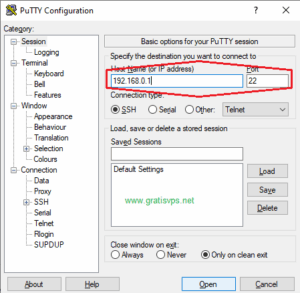
In the Host Name (or IP address) field, type your VPS IP address.
Example:192.168.1.100
-
Make sure the Port is set to
22(default for SSH). -
Connection type should be SSH (selected by default).
🔑 Step 3: Connect and Login
-
Click Open to start the SSH session.
-
The first time you connect, a security alert will appear. Click Yes to trust the host.
-
A terminal window will appear asking for a login name. Type:
-
Next, enter your password. (You won’t see characters as you type — this is normal.)
-
If successful, you’ll now be logged into your VPS and see a welcome message or shell prompt.
🔐 Optional: Using a Private SSH Key (Advanced Users)
If your VPS requires SSH key authentication:
-
Use PuTTYgen (installed with PuTTY) to generate or convert your private key to
.ppkformat. -
In PuTTY:
-
Go to Connection > SSH > Auth
-
Click Browse and select your
.ppkfile
-
-
Go back to Session, enter your IP, and Open the connection.
🧯 Troubleshooting Tips
-
❌ Connection refused? Make sure your VPS is online and port 22 is open.
-
🔐 Wrong login/password? Double-check your credentials.
-
🧱 Firewall blocks PuTTY? Check local firewall or antivirus settings.
-
🛡️ Can’t login with root? Some providers disable root login by default. Use a different user account.
✅ Conclusion
You’re now successfully connected to your VPS via SSH using PuTTY! 🎉
From here, you can update software, install packages, configure services, or deploy applications.
For frequent access, consider setting up SSH keys and saving your session profiles for convenience.
💡 Bonus Tips:
-
Use tools like WinSCP for graphical file transfer via SSH.
-
Secure your VPS by changing the default SSH port and disabling root login (for advanced users).