

In 2026, your smartphone is more than just a communication device—it is a portal to a high-performance workstation. By learning how to use Free RDP on Android or iPhone, you can access a full Windows environment for SEO, coding, or gaming while on the go. This guide provides the ultimate 2026 tutorial for seamless mobile-to-cloud connectivity.
Why Use Free RDP on Mobile?
Mobile devices often lack the processing power or specific software support (like .exe files) needed for professional tasks. Connecting to a free rdp windows instance bridges this gap. Based on our 2026 user data at Free RDP Hosting, mobile users are the fastest-growing segment in the remote desktop space.
Top 5 Remote Desktop Apps for 2026
| App Name | Platform | Best Feature | Rating |
|---|---|---|---|
| RD Client (Microsoft) | iOS/Android | Official & Most Stable | 4.8/5 |
| AnyDesk | iOS/Android | Best for Low Latency | 4.5/5 |
| Chrome Remote Desktop | Android/iOS | Easiest Setup | 4.2/5 |
| Parsec | Android | High-FPS Gaming | 4.7/5 |
| NoMachine | All Mobile OS | File Transfer Speed | 4.4/5 |
Tutorial: Connecting Your Phone to an RDP Server
Follow these steps to access your free rdp server from your handheld device. We recommend using the official Microsoft Remote Desktop app for the best free rdp windows experience.
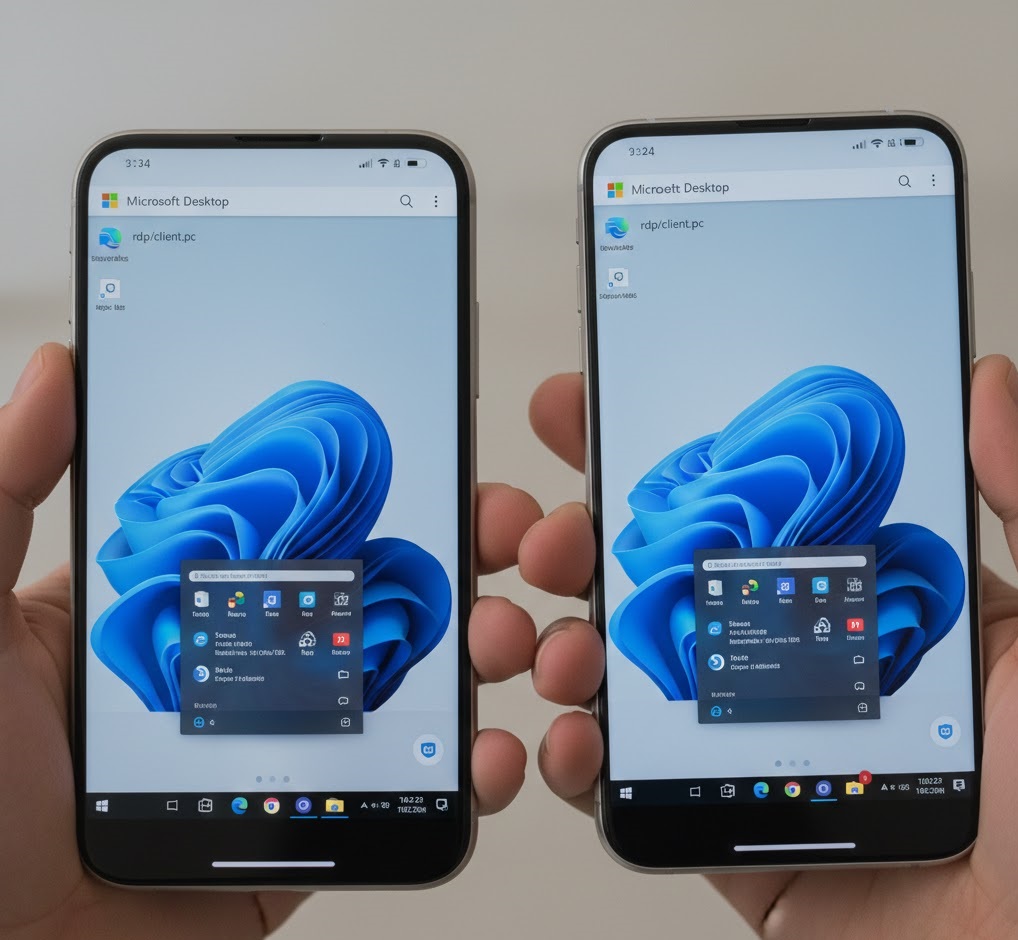
Step 1: Get Your RDP Credentials
Secure a server from our list of Free RDP Servers. You will need the IP Address, Username, and Password provided by the hosting provider.
Step 2: Configure the Mobile App
Open the RD Client app and tap the “+” icon. Select “Add PC”. Enter your server’s IP address and save the connection. In the “User Account” section, enter your administrator credentials.
Step 3: Optimize for Touch Control
Once connected, switch between “Mouse Pointer” and “Touch” mode. For mobile users, touch mode is often faster for navigation, while mouse pointer mode is essential for precision tasks like SEO auditing.
Use Cases: What Can You Do on Mobile RDP?
- Emergency Server Fixes: Restart services or fix website errors from anywhere.
- Monitoring Bots: Check the status of your 24/7 SEO or trading bots while commuting.
- Desktop-Only Sites: Browse websites that don’t load correctly on mobile browsers using your free rdp windows desktop.
Troubleshooting: Mobile Connection Drops
If your use free RDP on Android session keeps disconnecting, try these fixes:
- Lower the Resolution: In the app settings, set the resolution to “Match this device” or a lower 720p setting.
- Check Data Saver: Ensure your phone’s “Data Saver” mode isn’t killing the RDP app in the background.
- VPN Conflicts: If using a mobile VPN, try disabling it to see if it’s blocking the RDP port (3389).
Conclusion
Using a Free RDP on Android or iPhone is the ultimate 2026 productivity hack. It gives you the full power of a Windows PC in your pocket. By following this guide, you can ensure a stable, high-speed connection every time. For more information on mobile security standards, check the official iOS Security documentation.